|
Synchronizing and Going Online
|
Top Previous Next |
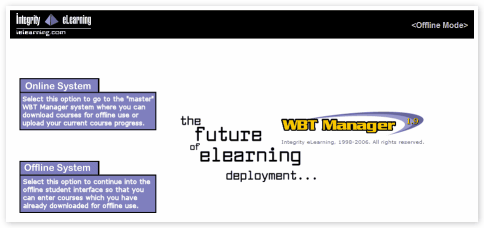
| 1. | Launch the Offline Module from its Start menu entry or its desktop icon. The Offline Module start page should display (appearance on your version may vary).
|
|
|
|
|
| 2. | Click the Online System link to jump to the master WBT Manager system.
|
|
|
| Note: In order to ensure successful data transfer you should always use this link to reach the master system when going synchronizing and going online with courses.
|
| 4. | On your main menu, click the link for the off-line course you wish to synchronize.
|
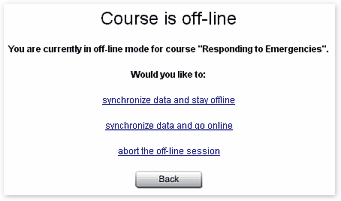
You can tell which courses you have off-line by the special  status icon. Instead of the lesson menu for the course, the following page will appear: status icon. Instead of the lesson menu for the course, the following page will appear:
|
|
|
|
|
|
| 5. | Click on the option you need.
|
| · | synchronize data and stay off-line
|
| This option copies your status information for the course from the Offline Student Module database on your computer to the master WBT Manager™ system database. You will see a sequence of Web pages as the process occurs. Do not interrupt this sequence of pages. When synchronization is completed, the master database will contain the current values for your course status. The course will remain in off-line mode.
|
| · | synchronize data and go on-line
|
| This option performs the same synchronization process as the previous option. After the database is synchronized, the off-line flags in the master database will be cleared. You will then be able to enter the course on the master system.
|
| · | abort the off-line session
|
| This option clears the off-line flags in the master WBT Manager™ database without first synchronizing with the Offline Student Module database. All information for the off-line session since the last time the databases were synchronized will be lost. You can use this option if you urgently need access to the course through the master system but cannot connect with the system on which you are taking the course off-line. You can also use it to clear the off-line flags in the event of an unsuccessful download of course information when going off-line.
|